This information pertains to LabQuest 2.
If you have a LabQuest 3, see this article.
The original LabQuest does not support this feature.
Related Links
How do I set up LabQuest 2 to email data with a Gmail account?
How can I setup email on my LabQuest using a Yahoo mail account?
How do I set up LabQuest 2 or LabQuest 3 to email data with labquest@vernier.com instead of my own email account?
Is there a way to get the files a LabQuest sends via email directly from the LabQuest?
These instructions are for LabQuest 2s that have been updated to 2.7 or higher. If you have not updated your LabQuest 2 since Fall of 2016, you should install the update before proceeding: https://www.vernier.com/support/updates/labquest/labq2/
Instructions
To set up email data with a Gmail account, your LabQuest 3 unit needs to be connected to a wireless network with internet access.
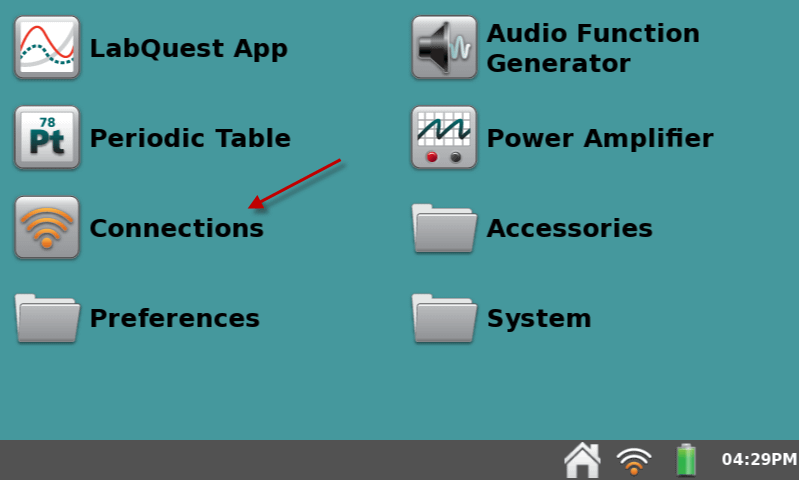
1. Tap the home button on the screen or press the physical home button.
2. Tap Connections.
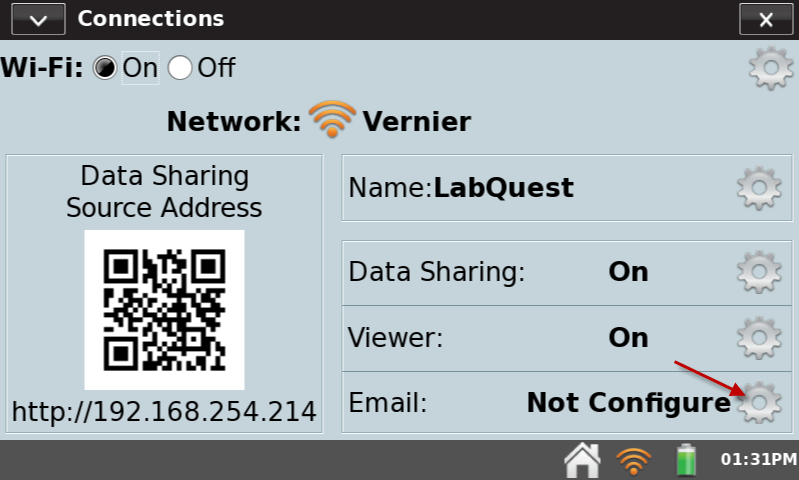
3. Tap the Email gear icon.
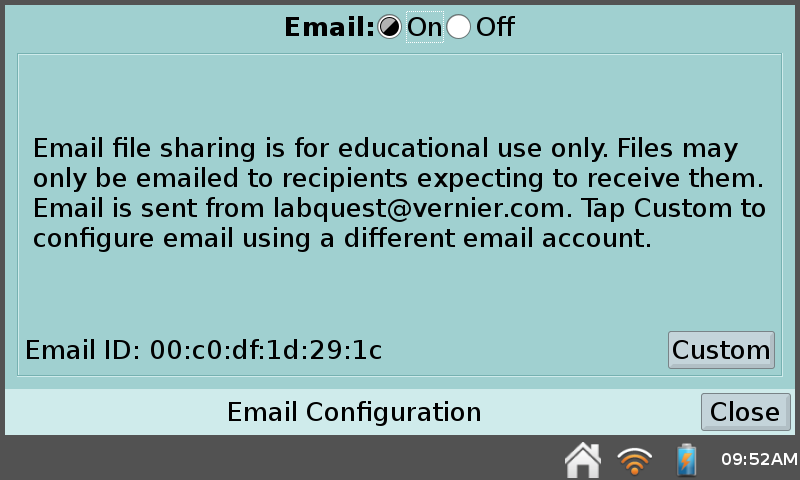
4. Turn Email On and then click the Custom button.
4. Enter your Email address and press Next.
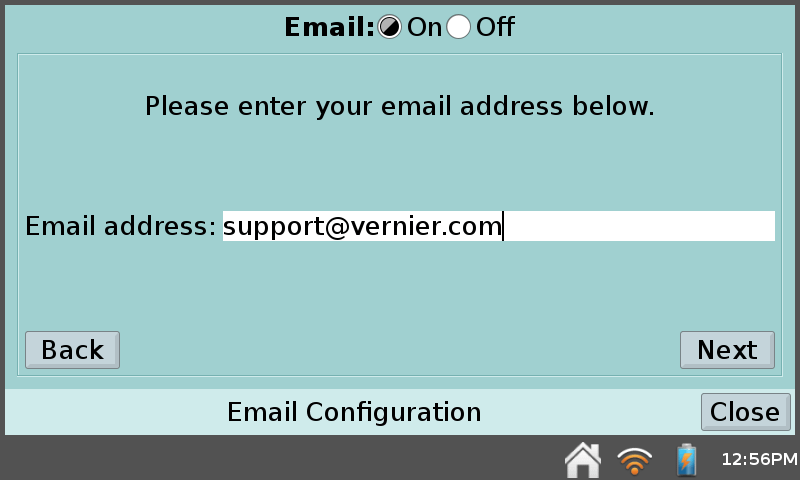
5. Press Next Again
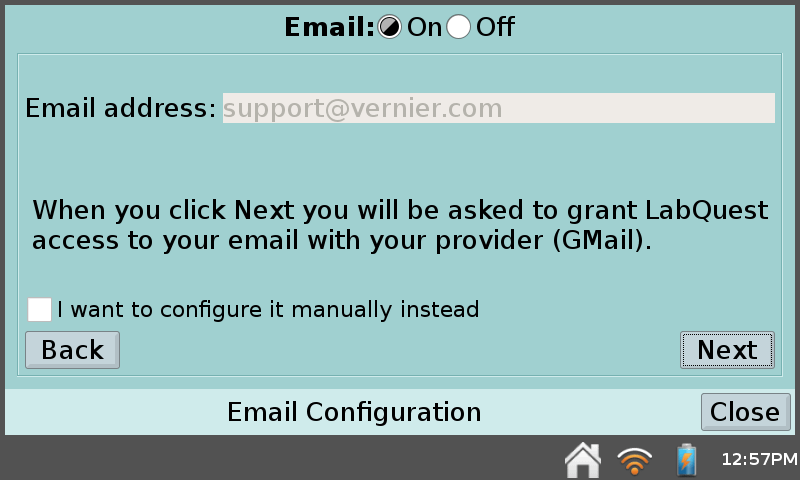
6. Note: it can take several seconds for the Sign in – Google Account screen to show. Once it does, press Next.
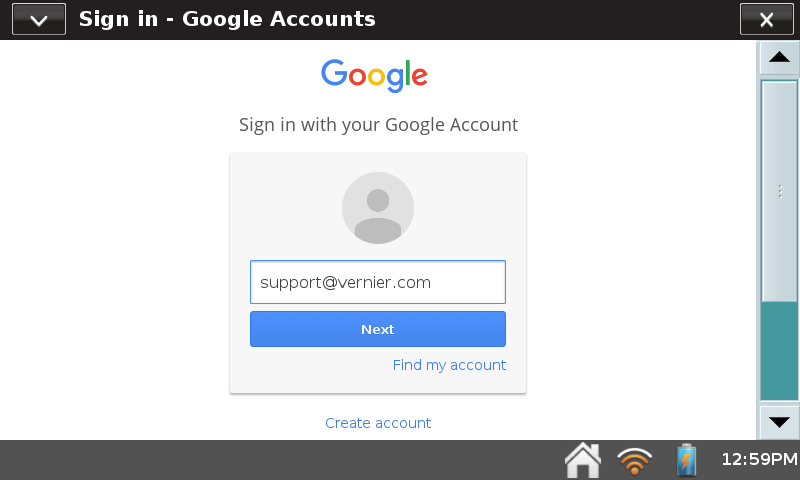
7. Enter your password and press Sign in
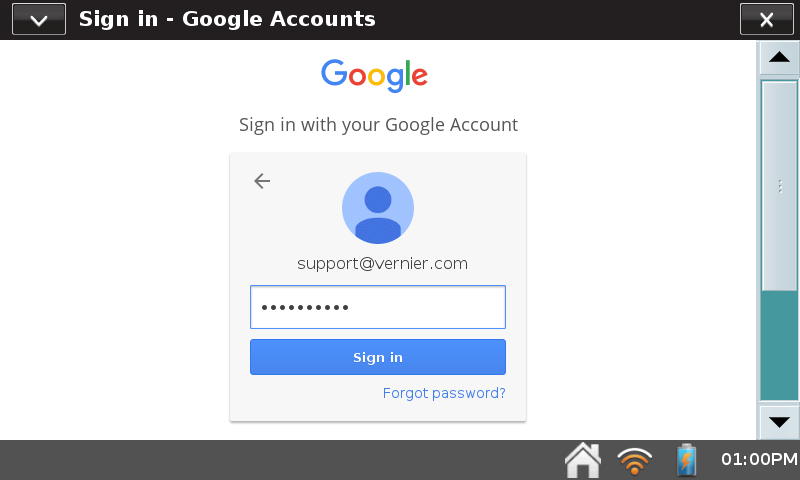
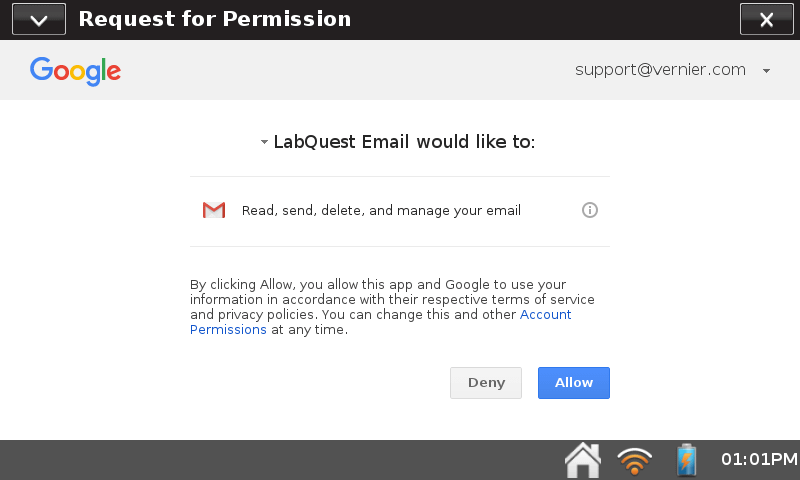
8. Press Allow
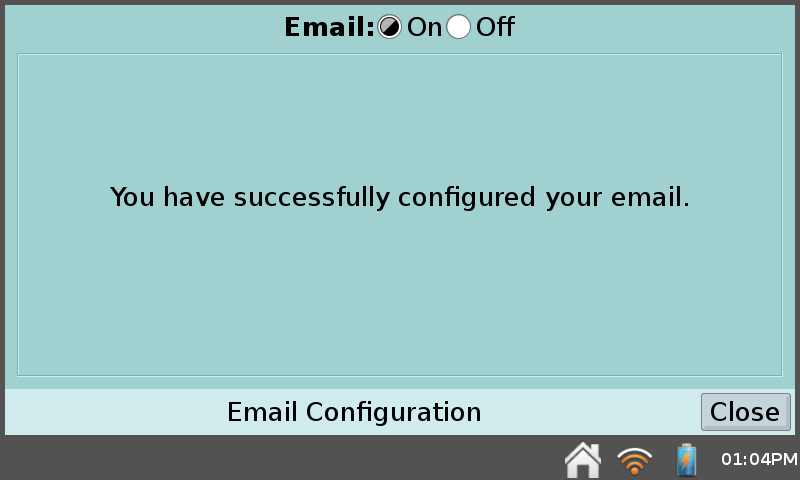
9. Press Close