 There are multiple local dealers for India. See their contact information »
Spirometer User Manual
Order Code: SPR-BTA
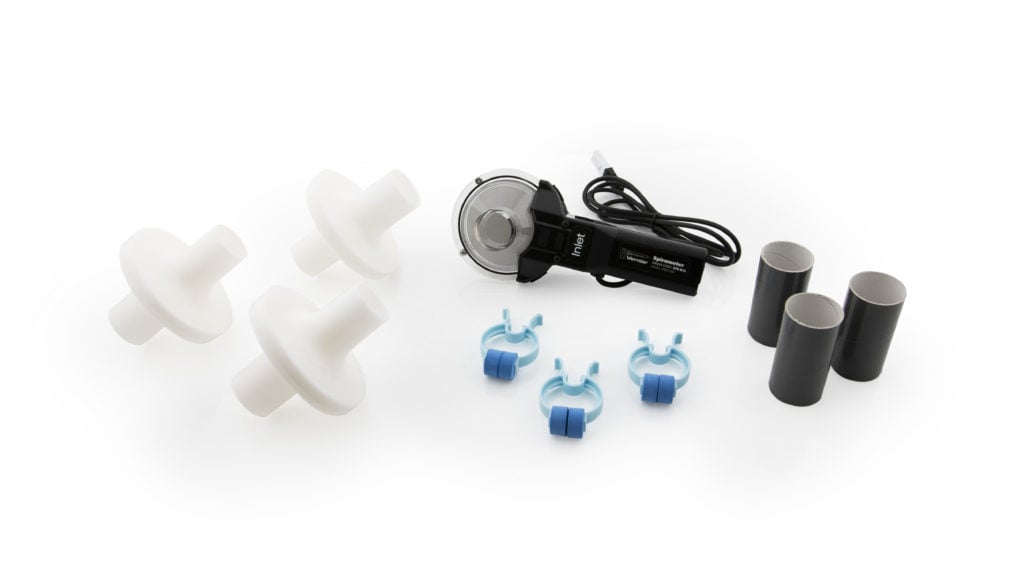
The Spirometer can be used to perform a variety of experiments related to airflow and lung volume, including
- FEV (forced expiratory volume). FEV is the volume of air exhaled after a short period of constant effort. When this test is done over a one-second interval, it is known as FEV1.
- FVC (forced vital capacity). FVC is the volume of air exhaled by a forced maximal exhalation after a full inhalation.
- TV (tidal volume). TV is the volume of air inhaled and exhaled at rest.
Note: Vernier products are designed for educational use. Our products are not designed nor are they recommended for any industrial, medical, or commercial process such as life support, patient diagnosis, control of a manufacturing process, or industrial testing of any kind.
What's Included
- Spirometer
- 3 disposable mouthpieces (optional)
- 3 disposable bacterial filters
- 3 noseclips
Compatible Software
Choose a platform below to see its compatibility requirements.LabQuest
Interface LabQuest App LabQuest 3 Full support LabQuest 2 Full support LabQuest Full support Computers
Software Interface Graphical Analysis Graphical Analysis (Web App) Logger Pro (discontinued) Logger Lite (discontinued) LabQuest Mini Partial support 1 Partial support 1 Full support Partial support 1 LabQuest 3 Full support 1 2 Partial support 1 2 Full support Incompatible 1 LabQuest 2 Full support 1 2 Partial support 1 Full support Partial support 1 LabQuest Stream Partial support 1 3 Partial support 1 3 Partial support 4 Partial support 1 3 Go! Link Partial support 1 Partial support 1 Full support Partial support 1 LabQuest Partial support 1 Partial support 1 Full support Partial support 1 LabPro Incompatible Incompatible Full support Partial support 1 Compatibility Notes
Chromebook
Software Interface Graphical Analysis (Web App) LabQuest Mini Partial support 1 LabQuest 3 Partial support 1 2 LabQuest 2 Partial support 1 LabQuest Stream Partial support 1 3 Go! Link Partial support 1 LabQuest Partial support 1 Compatibility Notes
iOS
Software Interface Graphical Analysis Graphical Analysis GW LabQuest Stream Partial support 1 Incompatible LabQuest 3 Full support 2 Full support 2 LabQuest 2 Full support 2 Full support 2 Compatibility Notes
Android
Software Interface Graphical Analysis Graphical Analysis GW LabQuest Stream Partial support 1 Incompatible LabQuest 3 Full support 2 Full support 2 LabQuest 2 Full support 2 Full support 2 Compatibility Notes
Arduino
Software Interface Arduino Vernier Arduino® Interface Shield Full support 1 Compatibility Notes
LabVIEW
Software Interface NI LabVIEW SensorDAQ Full support Vernier myDAQ Adapter Full support 1 2 Go! Link Full support 2 LabQuest Mini Full support LabQuest Stream Full support LabQuest 3 Full support LabQuest 2 Full support LabQuest Full support Compatibility Notes
Texas Instruments
Software Interface EasyData DataMate TI-84 SmartView DataQuest TI-Nspire Software EasyLink Partial support 1 2 Incompatible Partial support 1 3 Partial support 1 Partial support 1 3 CBL 2 Partial support 1 4 Partial support 1 4 5 Incompatible Incompatible Incompatible LabPro Partial support 1 4 Partial support 1 4 5 Incompatible Incompatible Incompatible TI-Nspire Lab Cradle Incompatible Incompatible Incompatible Partial support 1 Partial support 1 Compatibility Notes
Quick Start
- Plug the sensor into the interface (LabQuest 3, LabQuest Mini, etc.).
- Prepare for data collection:
- Vernier Graphical Analysis®: Launch the app, if necessary, and click Sensor Data Collection.
- LabQuest® App: Choose New from the File menu.
- Connect the interface to the USB port on your computer. The software will identify the sensor and load a default data-collection setup. You are now ready to collect data.
Need Additional Information?
Visit the following link:
Using the Spirometer
Connect the probe following the steps in the Quick Start section of this user manual.
The Spirometer can be used for inspiratory and expiratory experiments.
Always use a disposable bacterial filter with the Spirometer for all experiments. According to the manufacturer’s specs, the MicroGard® filters out more than 99% of bacterial and viral aerosols. Using a cardboard mouthpiece in addition to the bacterial filter is optional.
Note: Every person must use their own bacterial filter (and mouthpiece, if desired)—do not share these.
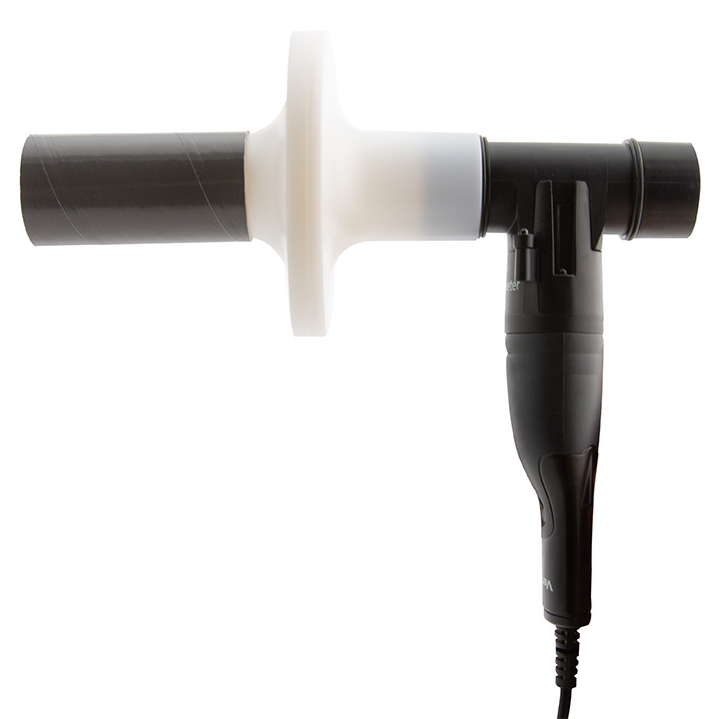
- Use a noseclip to ensure that the subject is only breathing through their mouth.
- Connect a disposable bacterial filter (and a disposable mouthpiece if desired) to the flow head of the sensor on the side labeled "Inlet."
- Hold the Go Direct Spirometer vertically and still during use
Videos
There are no videos for this product.
Calibrating the Sensor
You should not have to perform a new calibration when using the Spirometer. The sensor is calibrated before shipping and uses a stored calibration by default. You can simply use the appropriate calibration value that is stored in the data-collection program.
For the most accurate measurements with this sensor, we recommend adjusting the calibration using a 2 L syringe. This is a simple process that takes only a few minutes.
For further calibration information, see www.vernier.com/til/3353
Specifications
|
Pressure |
Type: Differential Range: ±500 Pa Accuracy: ±1 Pa or 3% of reading |
|
Flow rate range |
±10 L/s |
|
Flow head |
Volume: 41 mL Dimensions: 29.5 mm (diameter) × 82 mm (length) Mass: 69 g Construction: ABS plastic |
|
Cable length |
1.5 m |
|
Stored calibration |
Slope: 7.8 (L/s)/V Intercept: –17.55 L/s |
Care and Maintenance
Do not wrap the cable tightly around the sensor for storage. Repeatedly doing so can irreparably damage the wires and is not covered under warranty.
Note: Every person must use their own bacterial filter (and disposable mouthpiece, if desired)—do not share or reuse these.
The nose clips should be wiped clean between uses and soaked in a mild detergent after each experiment.
How the Spirometer Works
In the center of the flow head is a plastic screen. As air is forced through the flow head, a slight difference in pressure occurs between the front and the back of the screen. A tube in front of the screen and a tube behind the screen pass the pressures to a differential pressure transducer. The greater the airflow passing through the screen, the greater the pressure differential. Airflow rate (L/s) is calculated by applying a factory-derived calibration equation to the pressure data. Volume (L) is then calculated by integrating the flow rate (L/s).
Troubleshooting
For troubleshooting and FAQs, see www.vernier.com/til/1409
Repair Information
If you have watched the related product video(s), followed the troubleshooting steps, and are still having trouble with your Spirometer, contact Vernier Technical Support at support@vernier.com or call 888-837-6437. Support specialists will work with you to determine if the unit needs to be sent in for repair. At that time, a Return Merchandise Authorization (RMA) number will be issued and instructions will be communicated on how to return the unit for repair.
Accessories/Replacements
| Item | Order Code |
|---|---|
|
SPR-FIL10 |
|
| Noseclips (pkg. of 10) |
SPR-NOSE10 |
Warranty
Warranty information for this product can be found on the Support tab at www.vernier.com/spr-bta/#support
General warranty information can be found at www.vernier.com/warranty
Disposal
When disposing of this electronic product, do not treat it as household waste. Its disposal is subject to regulations that vary by country and region. This item should be given to an applicable collection point for the recycling of electrical and electronic equipment. By ensuring that this product is disposed of correctly, you help prevent potential negative consequences on human health or on the environment. The recycling of materials will help to conserve natural resources. For more detailed information about recycling this product, contact your local city office or your disposal service.
 The symbol, shown here, indicates that this product must not be disposed of in a standard waste container.
Contact Support
Fill out our online support form or call us toll-free at 1-888-837-6437.